
Bringing Old Handouts Back to Life With OCR Technology
Discover all of ResearchWize’s features to supercharge your academic workflow.
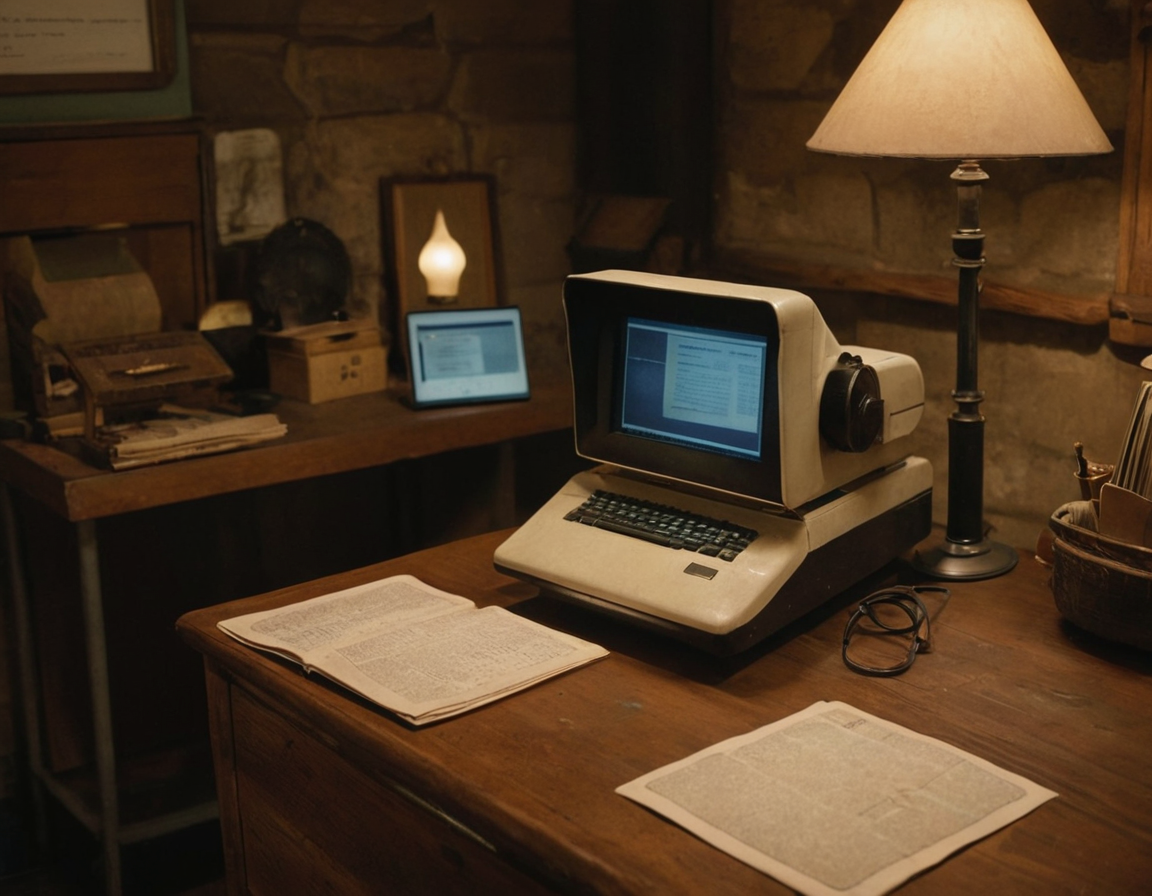
University students often find themselves overwhelmed by the sheer volume of printed handouts and notes that accumulate over the years. These paper-based resources can be difficult to manage and search through, making it a challenge to find relevant information quickly. Fortunately, Optical Character Recognition (OCR) technology offers a solution by transforming these old handouts into digital, searchable documents. This article will guide you through the process of using OCR technology to revitalize your academic materials, providing practical workflows, steps, and tips to avoid common pitfalls.
Understanding OCR Technology
Optical Character Recognition (OCR) is a technology that converts different types of documents, such as scanned paper documents, PDFs, or images captured by a digital camera, into editable and searchable data. By recognizing characters from scanned documents or images, OCR software can transform printed text into a digital format that you can edit and search. This is particularly useful for students who want to digitize their old handouts and notes.
Benefits of Using OCR for Handouts
By converting your old handouts into digital documents using OCR, you gain several advantages:
- Searchability: Easily find specific information within a document using keyword searches.
- Accessibility: Access your notes from any device, anywhere, without the need for physical storage.
- Organization: Categorize and sort your digital documents in a way that suits your study habits.
- Preservation: Protect your notes from physical damage or loss over time.
Step-by-Step Workflow: Digitizing Handouts with OCR
Step 1: Gather Your Materials
Start by collecting all the handouts and notes you wish to digitize. Organize them by subject or semester to streamline the process. Ensure that the documents are in good condition, as OCR accuracy can be affected by damage or poor print quality.
Step 2: Choose the Right OCR Software
Select an OCR tool that meets your needs. There are many options available, ranging from free apps to professional-grade software. Consider factors such as ease of use, accuracy, output formats, and additional features like batch processing or cloud integration.
Step 3: Prepare Your Documents for Scanning
Before scanning, make sure your documents are flat and free of any creases or folds. If you're using a scanner, adjust the settings to achieve a high-quality scan. For mobile apps, ensure good lighting and a steady hand to capture clear images.
Step 4: Scan Your Documents
Use your chosen OCR software to scan the documents. This process may vary slightly depending on the tool:
- Open the OCR application.
- Select the scan function and adjust settings as needed (e.g., resolution, color mode).
- Scan each page of the document, ensuring all text is captured clearly.
- Save the scanned images in a suitable format (e.g., PDF, JPEG).
Step 5: Perform OCR Processing
Once the documents are scanned, use the OCR feature to convert the images into editable text:
- Upload the scanned images into the OCR software.
- Initiate the OCR process to recognize and extract text from the images.
- Review the output for accuracy and make any necessary corrections.
Step 6: Organize and Save Your Digital Documents
After successfully converting your documents, organize them into a digital filing system that works for you. Consider using cloud storage solutions for easy access and backup. Label each document clearly and consistently to facilitate easy retrieval.
Common Pitfalls and How to Avoid Them
While OCR technology is powerful, there are some common pitfalls you should be aware of:
- Poor Scan Quality: Low-quality scans can lead to errors in text recognition. Ensure your scans are clear and well-lit.
- Complex Layouts: Documents with complex layouts or multiple columns may require additional processing to achieve accurate results. Consider using advanced OCR settings or editing the document layout manually.
- Handwritten Notes: OCR technology is primarily designed for printed text. Handwritten notes may require specialized software or manual transcription.
- Language Support: Ensure the OCR software supports the language of your documents for accurate text recognition.
Example Workflow: Digitizing a Semester's Worth of Notes
Here's a simplified workflow for digitizing a semester's worth of notes:
- Gather all handouts and notes from the semester.
- Select an OCR app or software that suits your needs.
- Scan documents using a mobile app or scanner.
- Upload scans to the OCR tool and execute text recognition.
- Review and correct any recognition errors.
- Organize digital documents by subject or date.
- Store in a cloud service for easy access and sharing.
Conclusion
By leveraging OCR technology, university students can efficiently bring old handouts back to life. This not only enhances the accessibility and usability of academic materials but also helps in preserving valuable information for future reference. With careful preparation and the right tools, digitizing your notes can be a straightforward and rewarding task. Embrace the digital transformation of your study materials and enjoy the benefits of a more organized and accessible academic life.

- AI Flashcard Generator (Chrome)
- Summarize PDF AI Tool (Chrome)
- Essay Outline Generator (Chrome)
- Best Chrome Summarizer Extension
- Alternatives to ChatPDF
- Chrome Extension for Students
- Install Extension
- See All Features
Ready to Level Up Your Research?
Install ResearchWize and transform how you study, write, and research.
Install ResearchWize Now